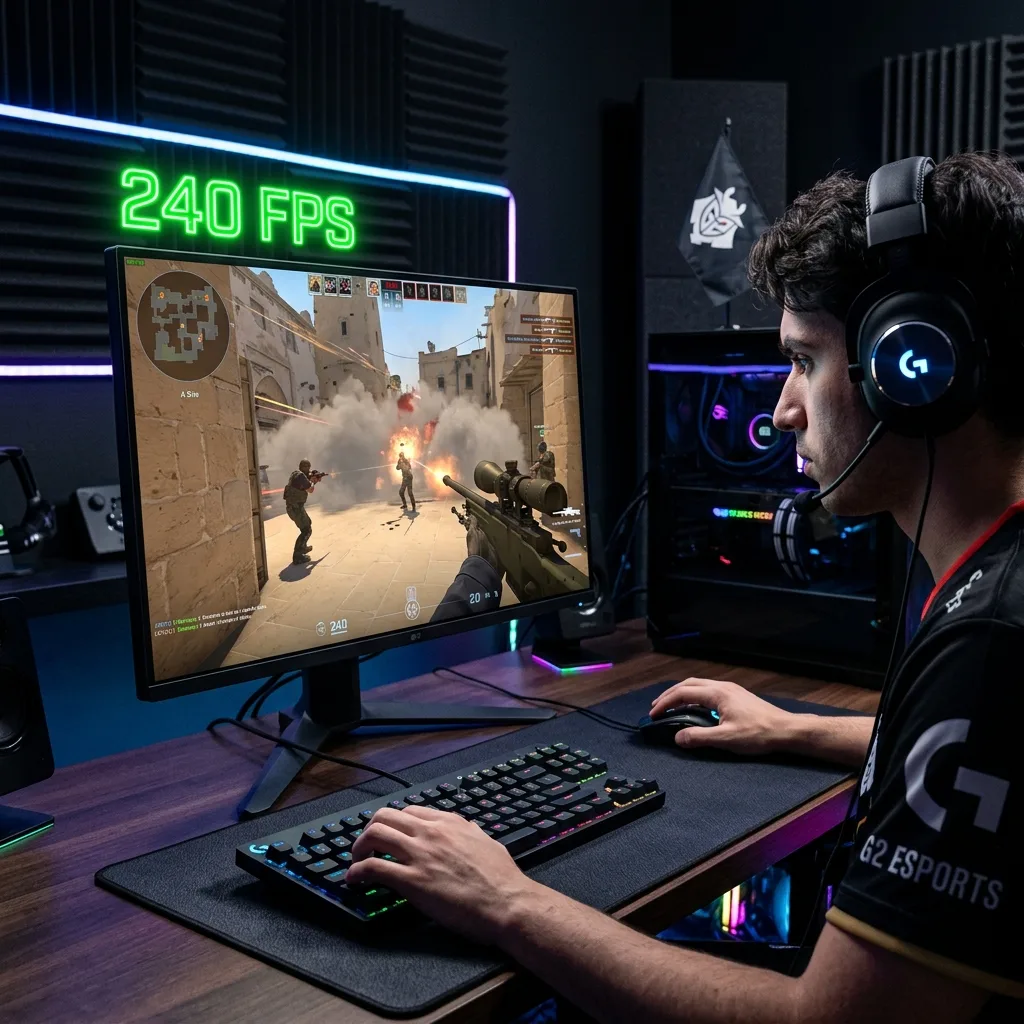
When it comes to competitive esports gaming, frame rates are everything. A higher frame rate translates to smoother gameplay, lower input latency, and a significant competitive advantage in fast-paced esports titles. Many gamers assume that getting a faster GPU is the key to unlocking these frame rates. In reality, at 200+ FPS, most esports titles become CPU limited. Games like CS2, VALORANT, Dota 2, League of Legends, WoW, and Apex Legends rely heavily on single-core CPU speed, low-latency RAM, thermal headroom, and clean operating system configurations.
Core System Optimizations for 200+ FPS
Step 1: Enable XMP or EXPO in BIOS
Entering your motherboard BIOS (using DEL or F2 during boot) and enabling XMP (for Intel CPUs) or EXPO (for AMD CPUs) allows your RAM to run at its rated speeds. If disabled, your RAM runs at default sub-optimal speeds, creating a major system latency bottleneck. Expected FPS gain: 5% to 20%.
Step 2: Windows Power & Graphic Tweaks
Select the "Ultimate Performance" power plan in Windows. Turn on "Hardware Accelerated GPU Scheduling" (HAGS) in Graphic settings, and make sure you disable Xbox Game Bar and Background Captures, which constantly eat up CPU cycles.
Step 3: Background Processes & Clean Startup
Disable non-essential startup programs (Discord auto-start, Spotify, Adobe services, Epic Launcher, Steam, Microsoft Teams) to prevent them from stealing memory and processing time during matches.
Step 4: Clean GPU Driver Installation & Control Panel Setup
Use Display Driver Uninstaller (DDU) in Safe Mode to wipe old drivers, then do a clean install of the latest NVIDIA or AMD drivers. Configure your NVIDIA Control Panel as follows:
- Power Management Mode: Prefer Maximum Performance
- Low Latency Mode: Ultra
- Texture Filtering - Quality: High Performance
- Vertical Sync (V-Sync): Off
- Shader Cache Size: On / Unlimited
Step 5: CPU & Thermal Tuning
Enable Intel Turbo Boost or AMD Precision Boost Overdrive (PBO) in BIOS to allow your processor to boost to its highest rated frequencies. Keep CPU temperatures under 85°C and GPU under 75°C by cleaning dust filters and ensuring proper airflow.
Step 6: Move Games to NVMe SSD
Install your games on a high-speed PCIe NVMe SSD. While this won't increase average frame rates, it eliminates stuttering and improves frame time consistency.
Competitive In-Game Graphic Settings
Counter-Strike 2 (CS2)
- Resolution: 1280x960 stretched or 1440x1080 (highly preferred by pros)
- Global Shadow Quality: Low
- Ambient Occlusion: Off
- High Dynamic Range (HDR): Performance
- Multisample Anti-Aliasing (MSAA): None or 2x MSAA
VALORANT
- Material / Texture / Detail / UI Quality: Low
- Multithreaded Rendering: On (Critical for CPU utilization)
- V-Sync: Off
Dota 2
- API Renderer: Vulkan or DX11
- Texture Quality: Medium
- Shadows: Low
- Ambient Effects: Off
- Effect Quality: Low
League of Legends
- Character Quality: Medium
- Effects & Environment Quality: Low
- Shadows: Off
- Anti-Aliasing: Off
World of Warcraft (WoW)
- Graphics Preset: 5 (Excellent balance for raids)
- Reduce Shadow Quality and Water Quality to Low
- View Distance: 5 or 6
- Ray Tracing / Ambient Occlusion: Disabled
Apex Legends
- Texture Streaming Budget: Low
- Ambient Occlusion: Disabled
- Sun Shadow Coverage / Spot Shadows: Low / Disabled
- Volumetric Lighting: Disabled
Recommended Hardware Upgrade Priority
If your system still struggles to hit 200+ FPS after making these adjustments, prioritize upgrades in this order:
- CPU: Look for processors with large L3 caches (e.g. AMD 3D V-Cache like the Ryzen 7 7800X3D) which are gaming powerhouses.
- RAM: Upgrade to high-speed DDR5 memory with tight timings (CL30).
- SSD: Migrate from SATA SSD or HDD to a fast PCIe NVMe M.2 SSD.
- GPU: While important, upgrade this last for esports if you are CPU-bound.
Final 200+ FPS Checklist
- ✓ XMP/EXPO enabled in BIOS
- ✓ Ultimate Performance Power Plan active
- ✓ Latest GPU drivers clean-installed
- ✓ HAGS enabled in Windows settings
- ✓ Control Panel optimized for High Performance
- ✓ Intel Turbo Boost or AMD PBO enabled
- ✓ Games installed on an NVMe SSD
- ✓ Temperatures controlled (CPU < 85°C, GPU < 75°C)
- ✓ Competitive low graphic settings applied in-game
- ✓ All background apps closed during gaming sessions
Ready to test your current setup? Scroll down to the interactive Gaming FPS Estimator below to see where your hardware stands!